Platform-shaped image set
Choose iPhone 6.9-inch (1320 × 2868), iPad 13-inch (2064 × 2752), or Google phone portrait (1080 × 1920). The 1024 × 500 Google feature graphic is a separate one-image preset.
Upload your app screens, choose a store format, and describe what each image should communicate. Start with 3 images, review the direction, then expand the set.
Choose iPhone 6.9-inch (1320 × 2868), iPad 13-inch (2064 × 2752), or Google phone portrait (1080 × 1920). The 1024 × 500 Google feature graphic is a separate one-image preset.
Select one listing image and download a PNG for team review, store console upload, or design critique.
Download an SVG wrapper that preserves the generated image, dimensions, and prompt metadata for review and design polish.
One benefit per image: The example brief separates preparing a checklist, using it offline, and syncing later. Give each screen one message instead of squeezing every feature into one image.
Start with 3: Review a small set before requesting 10 images. More images mean more generation work; the selected count is not a delivery-time promise.
Choose the destination: iPhone, iPad, Android phone, and feature graphic presets use different dimensions. Pick the destination before generating.
Review PNG before handoff: Check actual UI text, composition, and product claims. The SVG export wraps the image and metadata; it does not make every text or UI element independently editable.
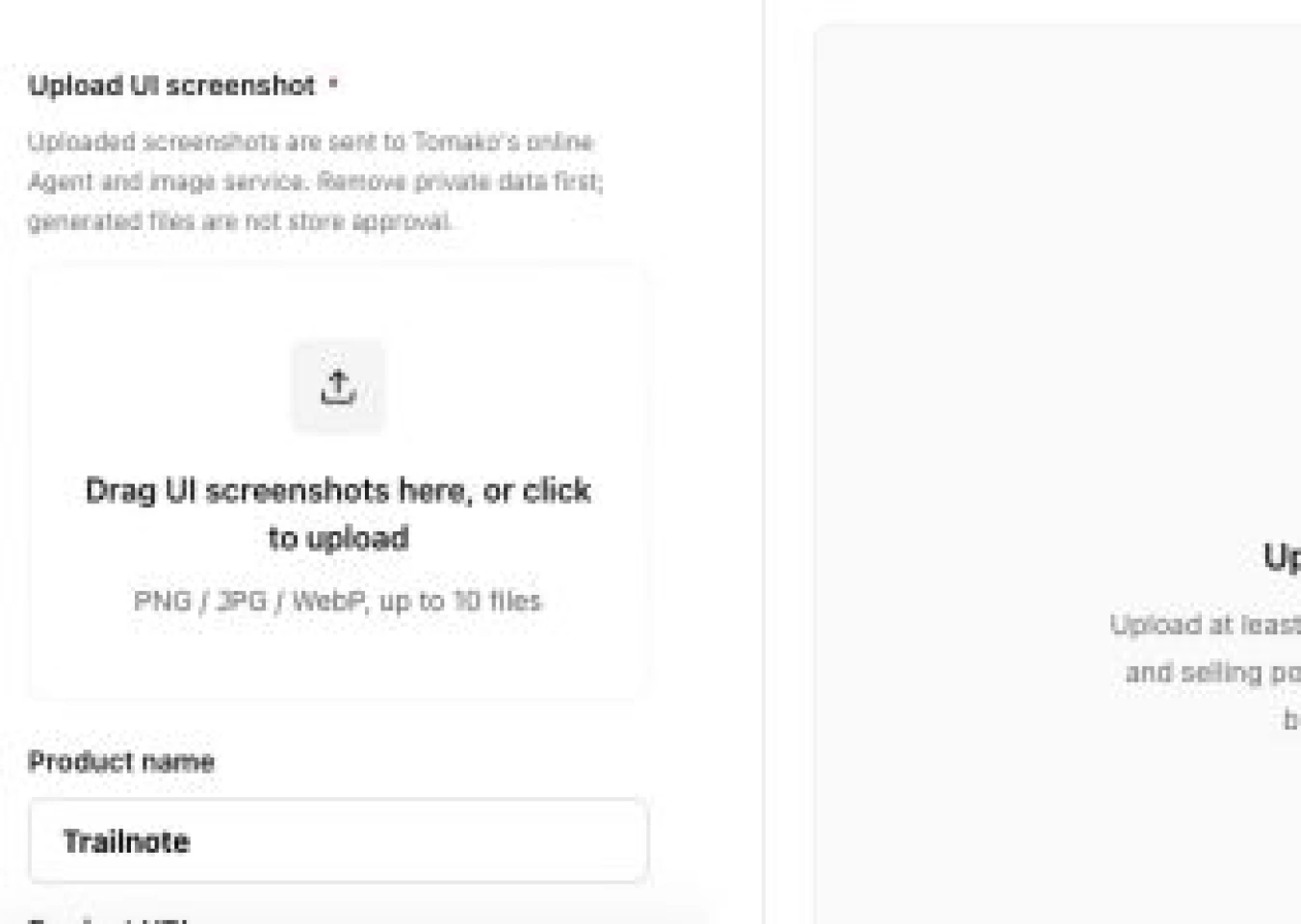
You must upload local UI screenshots. Product URL, App Store or Google Play links, product name, and selling points provide supporting context for title, description, and page-summary clues.
Current presets cover Apple iPhone 6.9-inch portrait at 1320 × 2868, Apple iPad 13-inch portrait at 2064 × 2752, Google Play phone portrait at 1080 × 1920, and a separate 1024 × 500 Google feature graphic.
This version uses an online image generation workflow to submit live image tasks, but it does not connect to App Store Connect or Google Play Console.
If a screenshot includes test accounts, real users, private data, or unauthorized brands, redact it before use.
If no result appears, confirm that a PNG/JPG/WebP screenshot is uploaded and browser file reading is allowed. If you added a product URL, confirm that its public page is reachable.
Before real submission, review the latest platform dimensions, review policies, trademark or copyright permissions, privacy content, copy claims, and readability on target devices.
Use PNG as a direction image or review image. First confirm whether the first screenshot explains the core user benefit clearly.
Hand the SVG wrapper to a designer when the team needs prompt traceability, final product screens, brand fonts, store whitespace, or localized variants.
Do not blindly reuse one image across App Store and Google Play. Portrait screenshots, iPad shots, and feature graphics need separate composition checks.
If a generated image feels crowded, remove small labels, secondary features, and long subheadlines before adding more decoration.
Before uploading to a real store console, check the latest official specs and review guidance for size, content, privacy, trademark, copyright, and exaggerated claims.
Upload your app screens, choose a store format, and describe what each image should communicate. Start with 3 images, review the direction, then expand the set.
It fetches public title, description, OG metadata, headings, and a short page summary to infer product benefits and screenshot copy. Logged-in, blocked, or anti-scraping pages may fail.
This is not a browser-only workflow. Uploaded screenshots are transmitted to Tomako's online image task and this tool does not promise immediate deletion or zero retention. Do not upload real user data, unredacted admin screens, customer information, confidential screens, or unauthorized brand assets.
The PNG is normalized to the selected preset for upload preview or team review. Before publishing, decode-check the file and review the latest dimensions, format, content policy, privacy, trademark, and copyright requirements.
The SVG is a handoff wrapper for the generated image. It preserves the image reference, dimensions, and prompt metadata so a designer can review and refine the direction.
No. Upload real UI screenshots first. Product URL or product name can add context, but cannot replace real product screens.
No. It generates visual results and does not connect to App Store Connect, Google Play Console, or live policy APIs. Review official store guidance before submission.