Start from real Open Graph metadata
Fetch title, description, site name, and existing og image data through the API request before asking AI for directions.
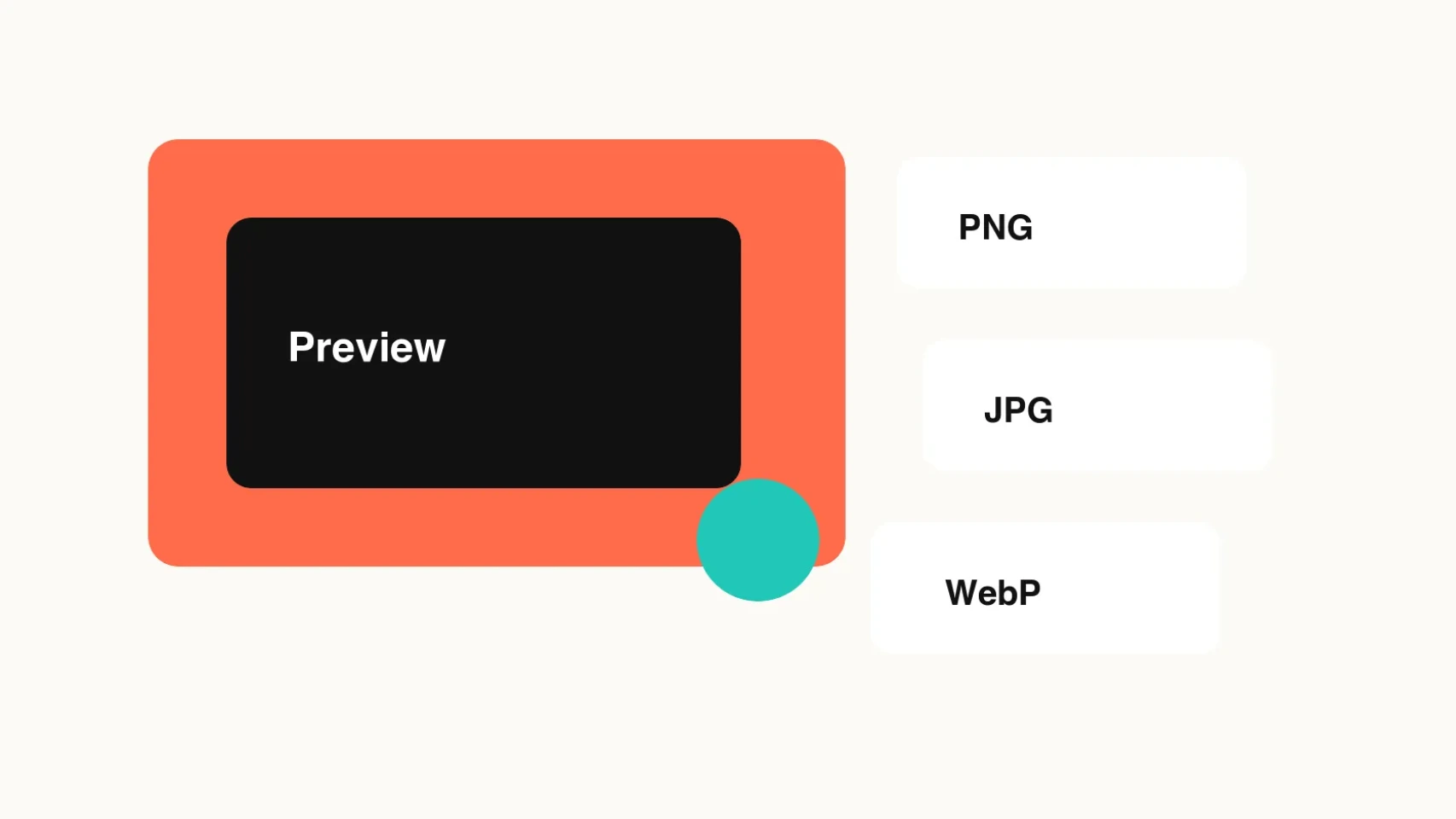
Use the left panel for URL metadata, brief, size, and template controls. Preview on the right, then download PNG, JPEG, or WebP.
Why Tomako
Fetch title, description, site name, and existing og image data through the API request before asking AI for directions.
AI returns title, subtitle, template, and palette ideas. The final image is rendered locally through Canvas for predictable downloads.
Open Graph images, Twitter/X headers, and blog featured images share the same copy and brand system, reducing repetitive design work.
Implementation
After download, upload the image to your public folder, CMS, or object storage and reference it with an absolute URL. Social platforms cache previews, so refresh their debuggers after deployment.
Works for static pages, landing pages, and any server-rendered template.
<meta property="og:title" content="Your page title" />
<meta property="og:description" content="A short preview summary." />
<meta property="og:image" content="https://example.com/og-image.png" />
<meta name="twitter:card" content="summary_large_image" />
<meta name="twitter:image" content="https://example.com/og-image.png" />Use the metadata API in Next.js 13+. Prefer absolute image URLs.
export const metadata = {
  openGraph: {
    title: "Your page title",
    description: "A short preview summary.",
    images: ["https://example.com/og-image.png"],
  },
  twitter: {
    card: "summary_large_image",
    images: ["https://example.com/og-image.png"],
  },
};Use Nuxt 3 useSeoMeta from a page or layout.
useSeoMeta({
  ogTitle: "Your page title",
  ogDescription: "A short preview summary.",
  ogImage: "https://example.com/og-image.png",
  twitterCard: "summary_large_image",
  twitterImage: "https://example.com/og-image.png",
});In a Vue app, use a head manager or render these tags from your server template.
useHead({
  meta: [
    { property: "og:title", content: "Your page title" },
    { property: "og:image", content: "https://example.com/og-image.png" },
    { name: "twitter:card", content: "summary_large_image" },
    { name: "twitter:image", content: "https://example.com/og-image.png" },
  ],
});
More Tips
X headers and CMS thumbnails can crop the edges. Keep titles, brand names, and primary shapes away from the border.
A social preview is not a full poster. Shorter titles and clearer contrast usually perform better in link cards.
PNG is better for sharp text and UI-like graphics. After checking quality, export JPEG or WebP if your publishing surface needs smaller files.
Outputs and controls
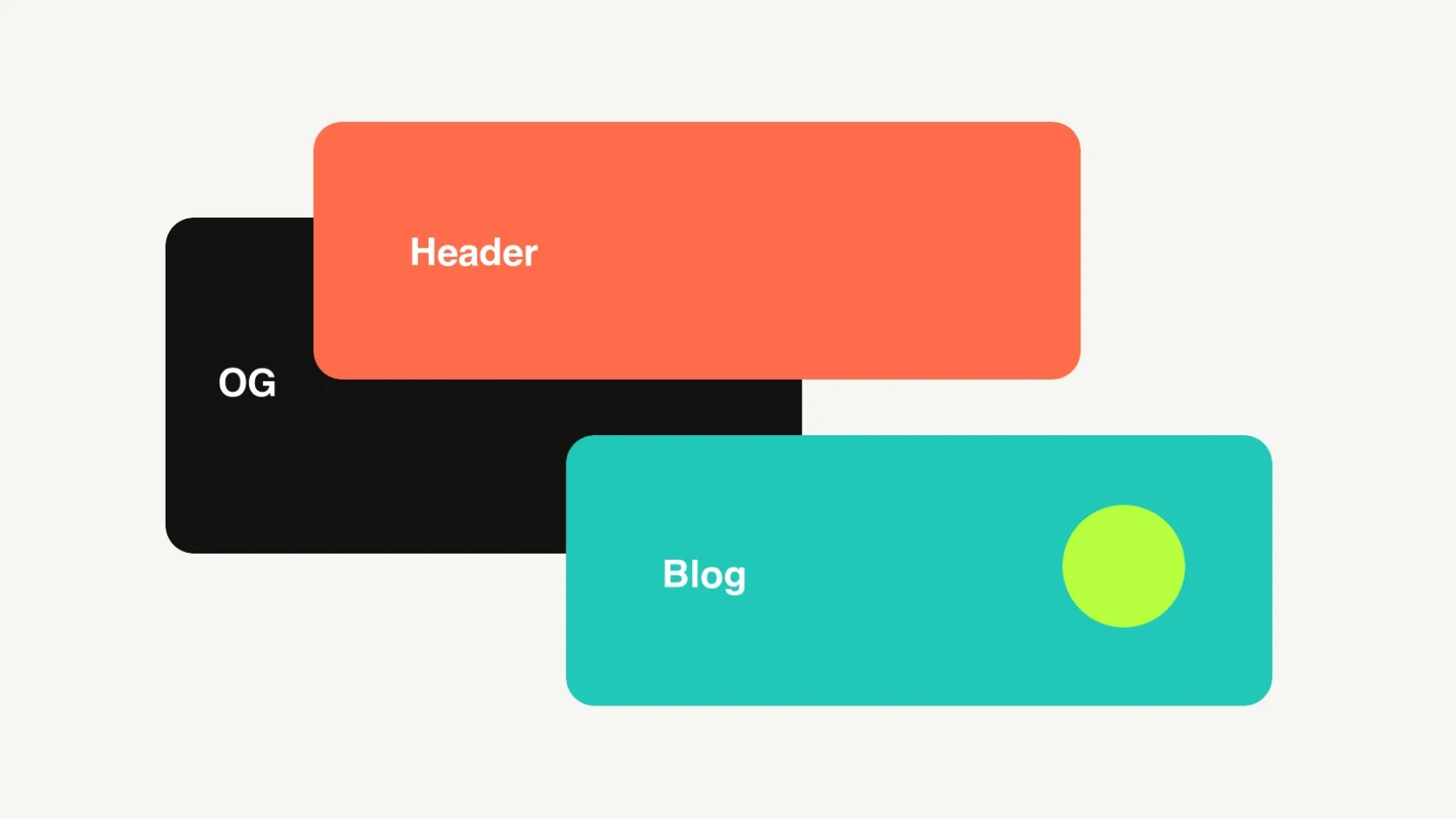
A 1200 x 630 link preview for websites, product pages, launch posts, and social sharing cards.
A 1500 x 500 profile or campaign banner for product launches, seasonal campaigns, and personal brands.
A 1600 x 900 article cover for blogs, newsletters, content hubs, and CMS thumbnails.
AI returns several title, subtitle, template, and palette directions that you can select and keep editing.
Export PNG, JPEG, or WebP files for public folders, CMS uploads, object storage, or social profile settings.
When URL fetching, OG metadata, or AI writeback fails, the page shows the real state instead of fake output.
An OG image is the preview image that platforms such as Slack, LinkedIn, Facebook, and X may show when someone shares a page URL. Your site still needs an absolute image URL in its Open Graph or Twitter card metadata.
An X header image is the wide banner at the top of an X profile. It is separate from the image used in a shared-link preview, so check the selected canvas size before exporting.
A blog featured image is a cover image used by a CMS, article listing, or newsletter. It can use the same message as an OG image, but its required crop and placement can differ.
AI suggestions provide editable direction for copy, color, template, and layout. Treat them as a starting point and check that the final wording, contrast, and brand use are appropriate before publishing.
You can download PNG, JPEG, or WebP. Upload the chosen file to your CMS, public folder, or image host and reference its public absolute URL in your page metadata.
This tool does not host a permanent public image URL or automatically publish Open Graph tags to your site. URL fetching and AI suggestions can also fail, so check the preview and publish the final asset yourself.
After the OG image is ready, use the same visual direction for your avatar, profile banner, bio, and other social profile assets.